Video tutorials
Manage content card settings in Lyyli
Use the settings panel on a Lyyli content card to keep status, ownership, formats and schedules organized in one shared workflow.
Transcript
Hi, I'm Mikko. Clear card settings keep everyone on the same page about what's happening and who owns the next step. Let's open this card from the Contents board.
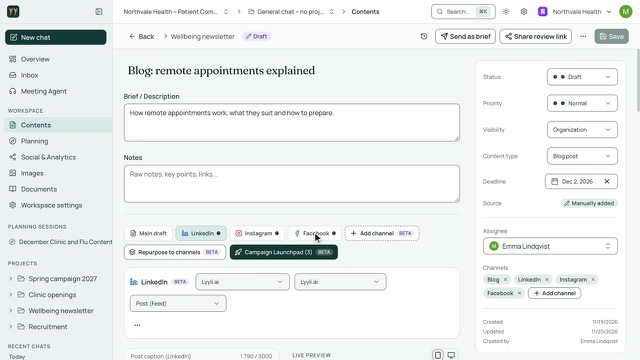
On the right is the settings panel, with Save sitting right at the top. We'll leave the writing itself for another video and start with Status. Status decides which column this card appears in on the Contents board, so keeping it current keeps our view accurate. Next, let's check Priority and Content type.
I use Priority to show what needs attention first, and Content type to label the format we're producing. From here, I'll move down to Visibility and Assignee.
Visibility lets me keep an early idea Private or share it with the Organization, while Assignee makes it clear who's handling it. Now let's look at Deadline and Source.
Adding a Deadline puts the card onto our calendar, and Source records how it started, like when it's manually added. Below that, let's check Channels. Under Channels, I see the linked channels and can click Add channel for more. At the bottom, Created, Updated, and Created by show the card's trail. Now I'll click Save.
Clicking Save stores the updates. Later, once we change Status to Published, we can also save the Publish URL right on the card. Let's check what to watch next. Try these settings on your own cards, and to see the writing workflow, watch From brief to finished draft on one content card next.
About this video
Clear card settings help your team stay aligned on what is happening, when work is due and who owns the next step. Starting from the Contents board, open the settings panel and set Status, Priority and Content type.
Choose Private or Organization under Visibility, select an Assignee and add a Deadline and Source. Check Channels and Add channel, review Created, Updated and Created by, click Save and add a Publish URL when Status is Published.