Publishing and channels
Create channel versions from one draft
Turn one main draft on a content card into tailored versions for your publishing channels.
Chapters
Transcript
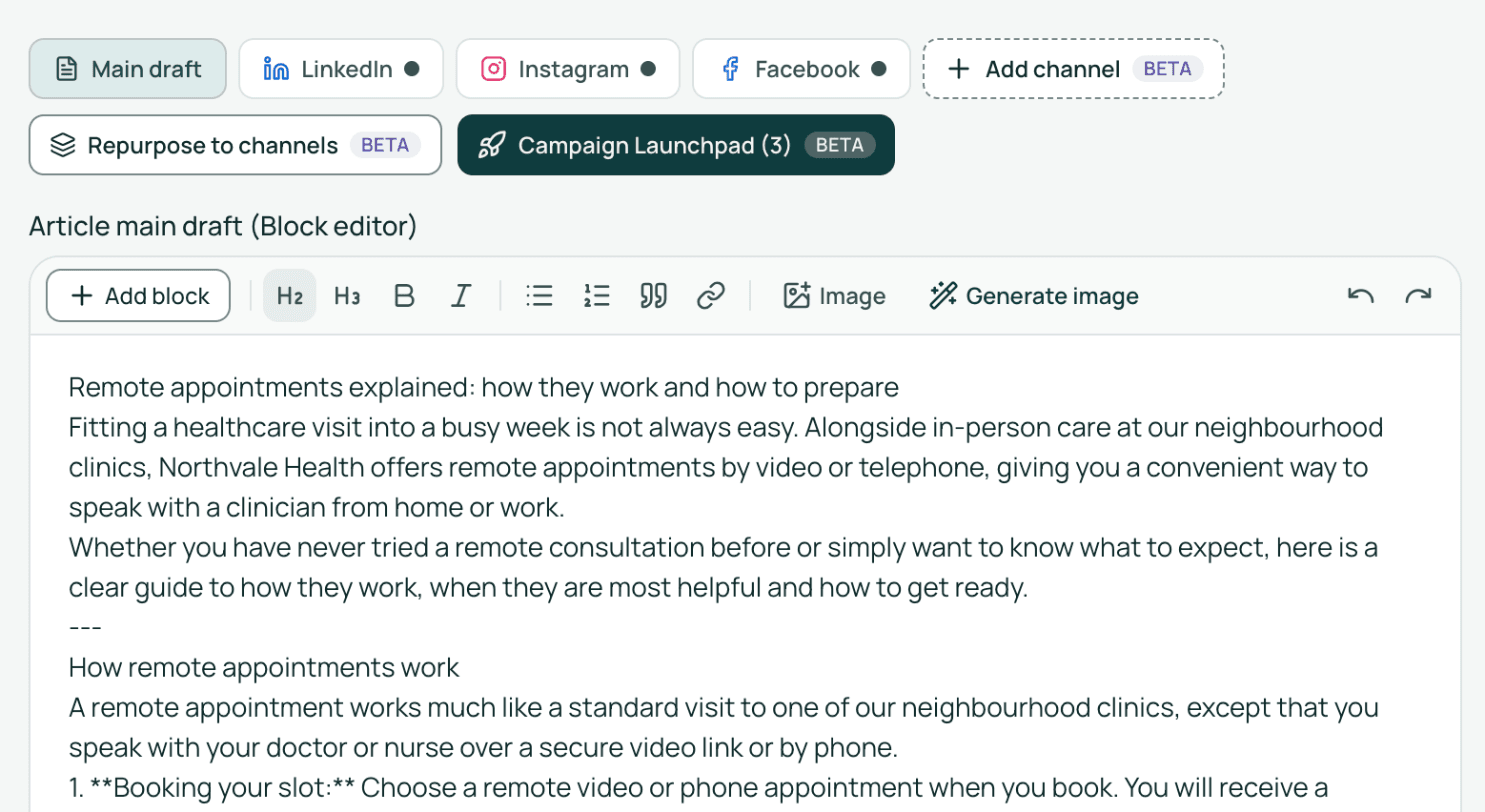
Hi, I'm Mikko. Turning one topic into separate social posts usually means copying text and rewriting it by hand. Let's look at an article draft to see a cleaner way. Here's Blog: remote appointments explained on the Main draft tab.
You can add one platform with Add channel, or draft several together. Let's click Repurpose to channels.
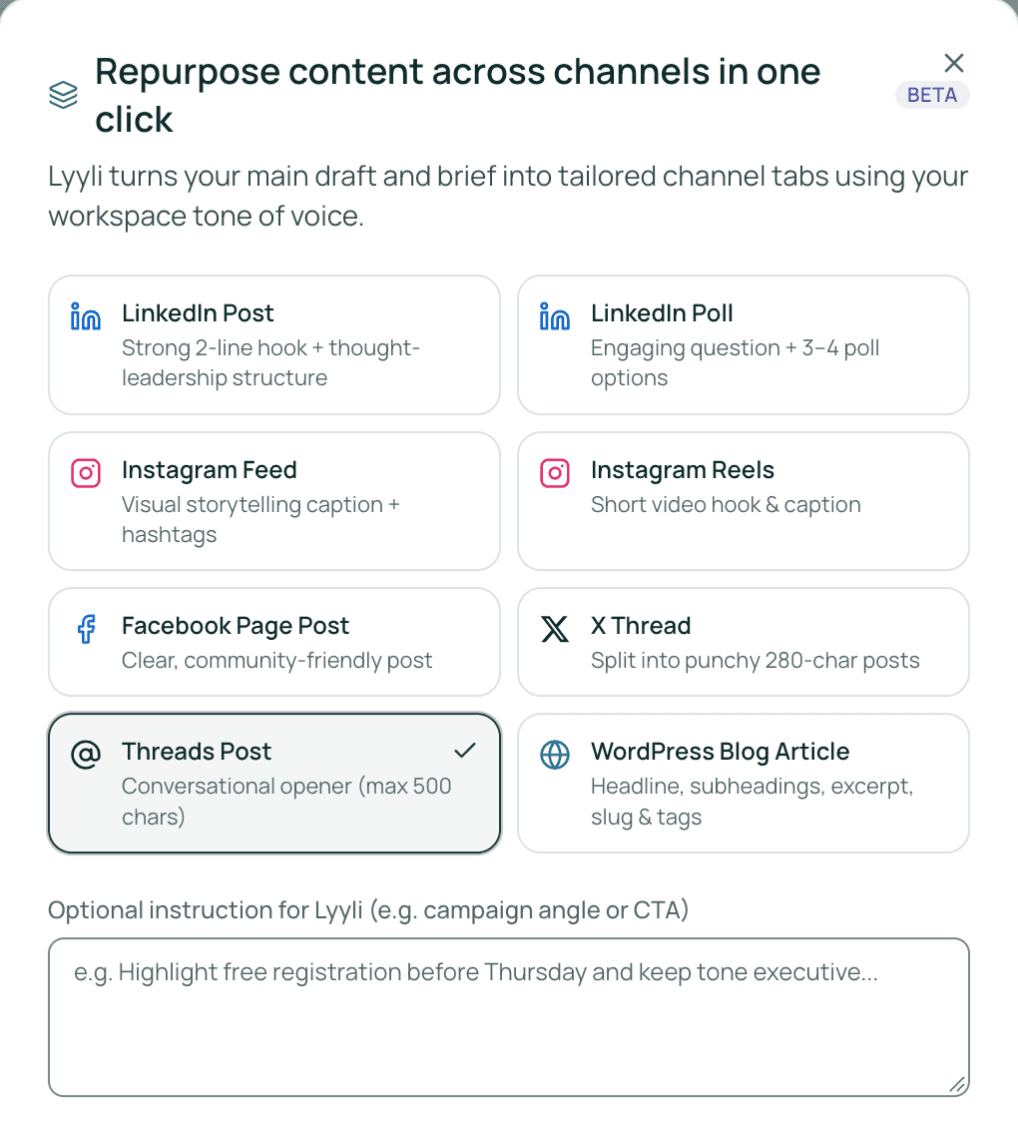
Lyyli takes your Main draft, brief, and workspace tone of voice to build tailored tabs for each channel. The format options are listed here, so let's pick what we need. I've checked LinkedIn Post, Instagram Feed, and Facebook Page Post.
In Optional instruction for Lyyli, I'll ask it to invite readers to book a remote appointment, then click the create button. Each channel gets its own tab next to Main draft, which stays untouched.
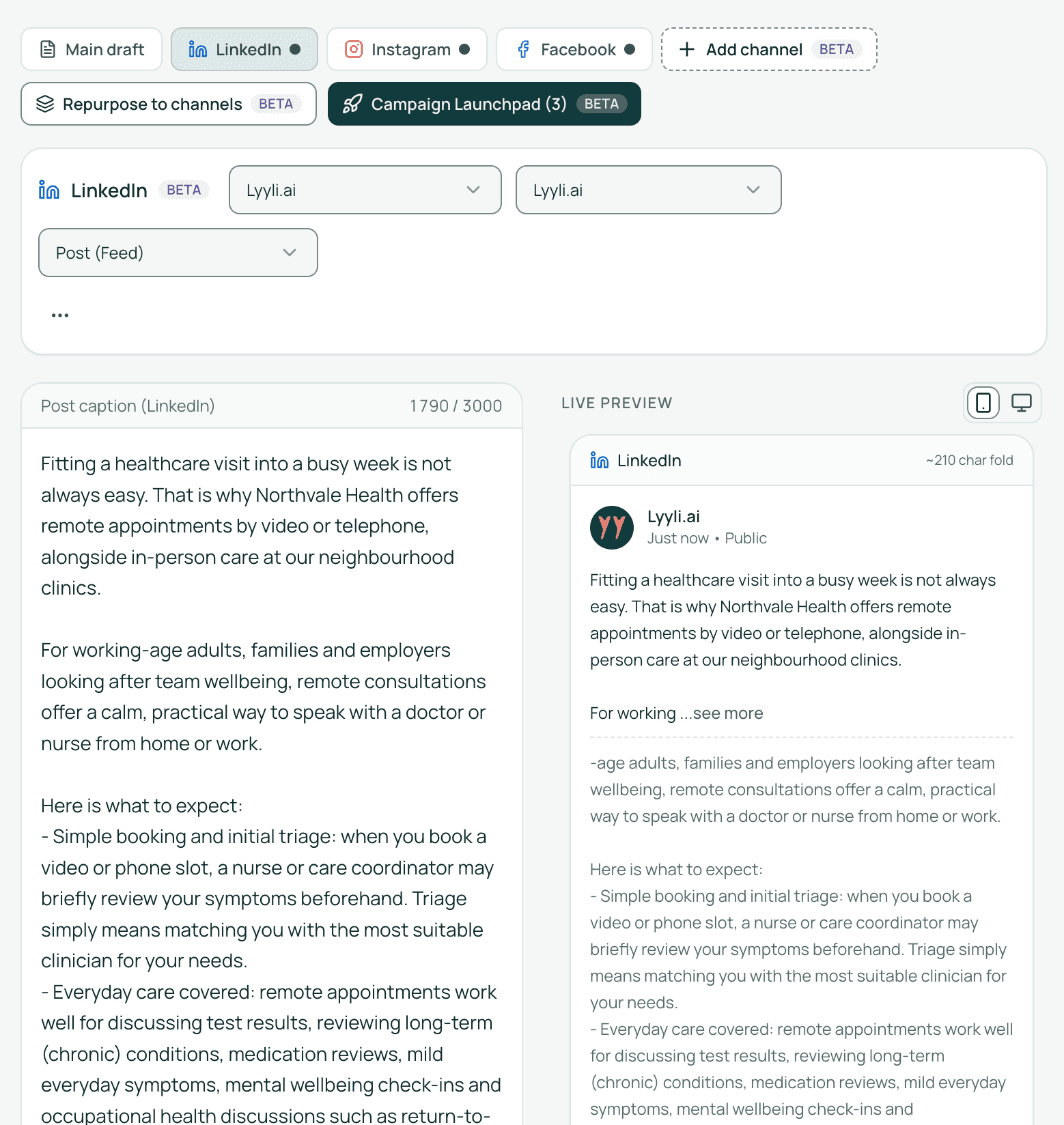
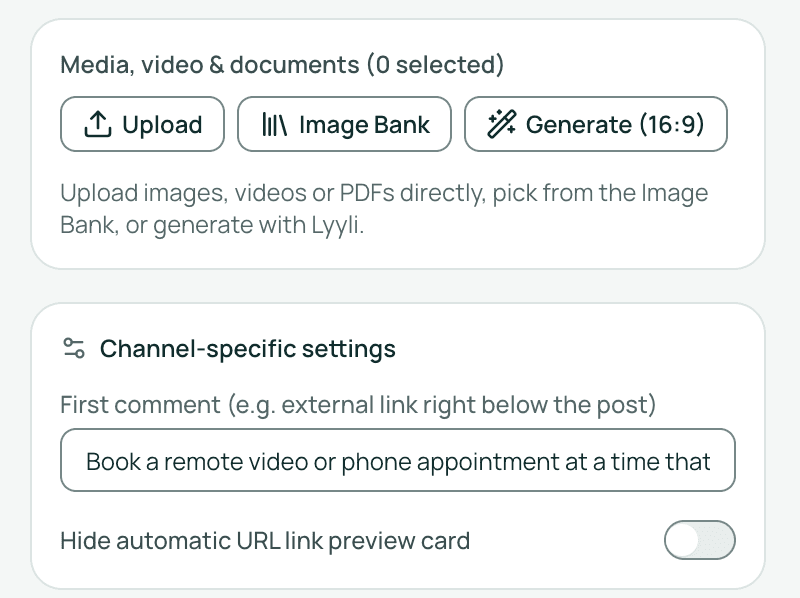
I'll open LinkedIn, where you'll find its Post caption (LinkedIn) and Media, video & documents for visuals. Let's check Live Preview next.
Live Preview shows how the post appears on LinkedIn, including where longer text breaks behind see more. That lets you test your opening hook before posting, so let's refine the draft in chat.
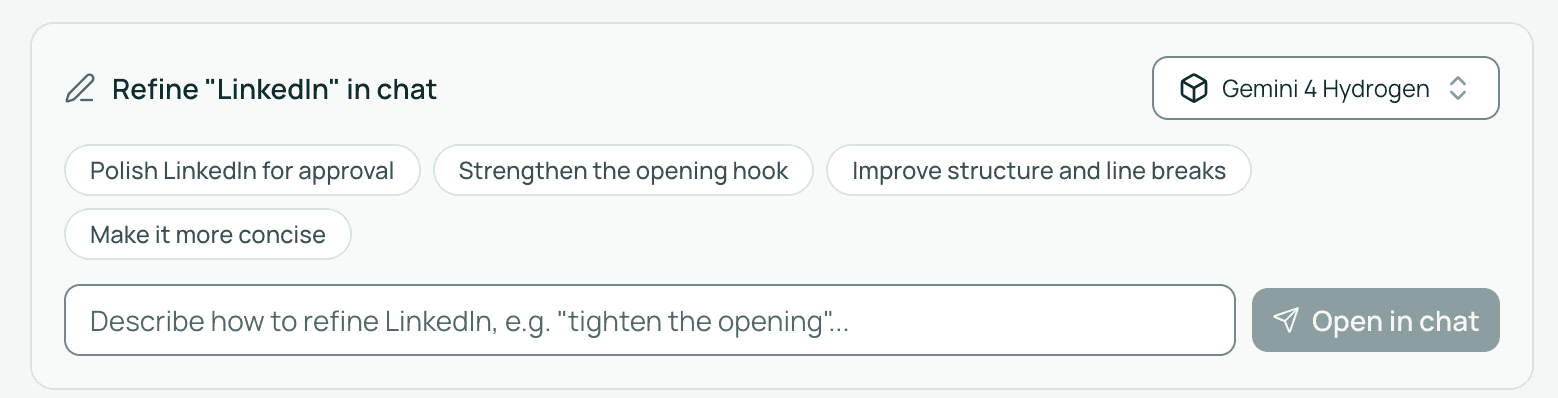
Under Refine "LinkedIn" in chat, you can enter your own prompt or use a quick action to sharpen the hook. Once the text and image look right, I'll click Save channel version. Everything stays as a draft here, so nothing goes live without your approval.
Channel publishing belongs to the Professional plan and is currently in testing. Next, we'll review, schedule, and publish.
- Click Repurpose to channels to open the dialog Repurpose content across channels in one click.
- Choose from LinkedIn Post, LinkedIn Poll, Instagram Feed, Instagram Reels, Facebook Page Post, X Thread, Threads Post and WordPress Blog Article.
- Enter a campaign angle or call to action in Optional instruction for Lyyli if needed.
- Click the creation button, which reads Create 3 channel versions when three options are ticked.
- Wait up to about a minute while Lyyli drafts the versions from your main draft, brief and workspace tone of voice.
- Pick the connected account in the account selector and choose a format in the format selector, such as Post (Feed), Carousel (Multi-media), Reels / Short Video or Story (24h), depending on the channel.
- Edit the text in Post caption and watch the character counter.
- Add media under Media, video & documents with Upload, Image Bank or Generate, or reuse a card file by clicking it under the card attachments.
- Open Channel-specific settings for extras such as First comment.
- Open the three dot menu on the channel tab and select Remove channel version to delete a version.
Upload a file once on one tab and reuse it on other channel tabs by clicking it under the card attachments.
Publishing options cannot be used.
Publishing needs a connected channel, so see the article on connecting publishing channels first. Schedule..., Add to Queue and Publish now also stay disabled until you tick I have reviewed the content.
Format options differ between channels.
The choices in the format selector depend on the channel you have selected.