Lyyli
Pricing
LoginBook a demo
Book a demo
Help table of contents
Video tutorials
Getting started
Login and account
Workflow and Kanban
Creating content
AI and brand voice
Publishing and channels
  • Connect publishing channelsProfessional
  • Create channel versions from one draftProfessional
Team and roles
Integrations
Admin and settings
Video tutorials
Getting started8
Login and account1
Workflow and Kanban5
Creating content8
AI and brand voice1
Publishing and channels2
  • Connect publishing channels
  • Create channel versions from one draft
Team and roles2
Integrations5
Admin and settings2
Back to section

Publishing and channels

Connect publishing channels

Professional

Connect publishing channels to your Lyyli workspace to schedule and publish from content cards.

Your browser cannot play this video. Download the MP4 file

How to connect a LinkedIn company page in LyyliLength 1:06Open the video page
Chapters
Transcript

Hi, I'm Mikko, and in this video I'll show you how to connect a LinkedIn company page to your workspace. We're starting in Workspace settings on the General tab. Integrations are workspace specific, so different workspaces can have their own channels. Let's open the Integrations tab.

Under Channels & Publishing, you see the Publishing Channels & Blog list. Channel publishing is part of the Professional plan and is currently in testing. Each row lets you connect in your browser or via By phone (QR). I'll click Connect LinkedIn.

On the connection page, Where should we post from?, you can pick yourself, your LinkedIn pages, or both, because each one is its own account. I'll choose the company page labeled Post as organization and click Connect account.

Back in Lyyli, the LinkedIn row shows 1 connected, and the account is Active. Connecting an account never publishes anything on its own. When you're ready to post, open a content card, create a channel version, confirm I have reviewed the content, and publish or schedule it.
You can connect publishing channels to your Lyyli workspace to schedule and publish from content cards. Connecting an account never publishes anything by itself, because Lyyli suggests and drafts while people decide and publish.
Before you start
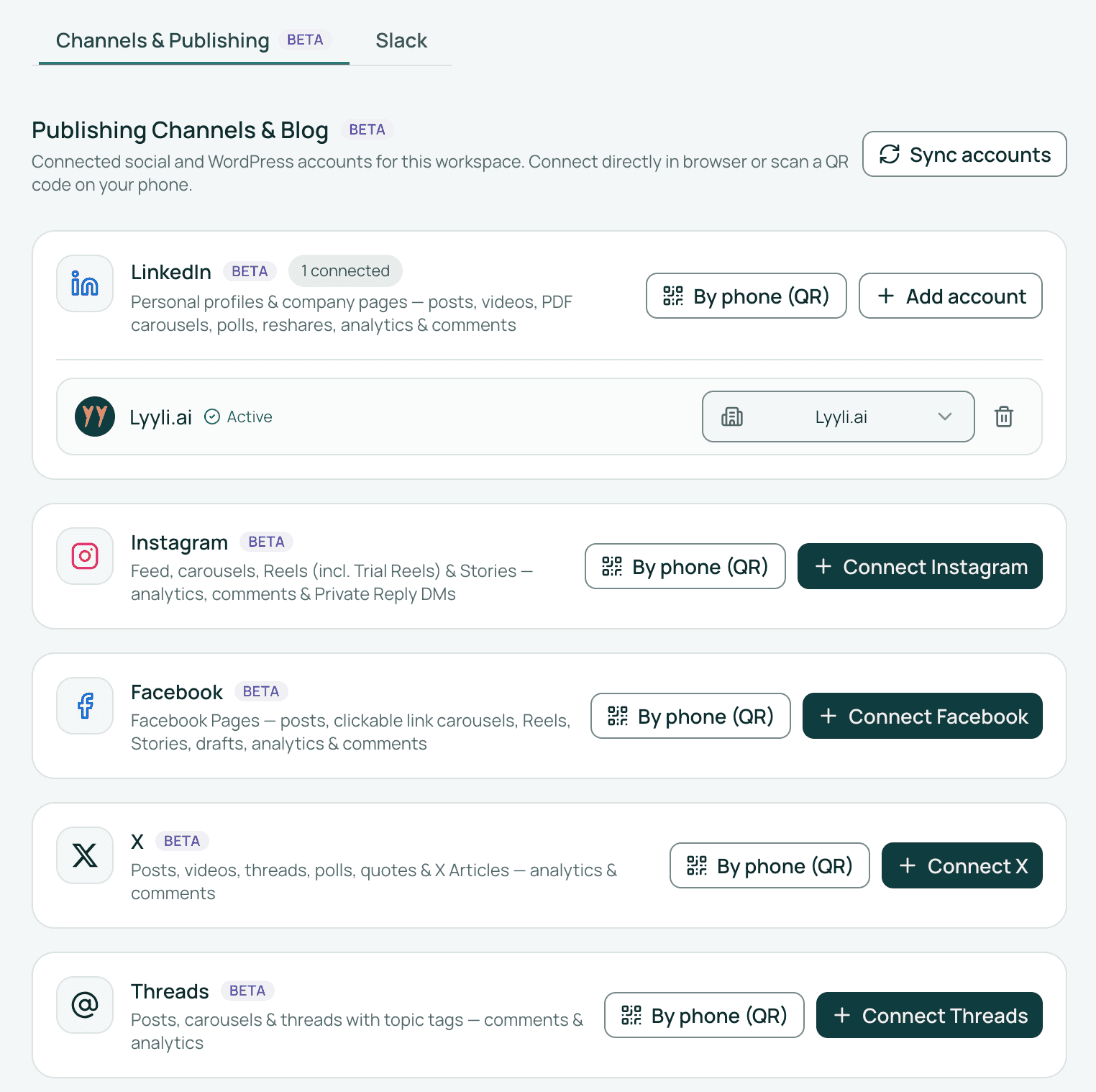
Channel publishing is part of the Professional plan and is currently in testing. Connections are workspace specific: each workspace has its own connected accounts. Open Workspace settings in the sidebar, open the Integrations tab, and then Channels & Publishing. Publishing Channels & Blog lists LinkedIn, Instagram, Facebook, X, Threads, and WordPress.
Channels & Publishing view showing Publishing Channels & Blog with an Active LinkedIn account and By phone (QR) and Connect buttons.
Connect a channel in the browser
  1. Select Connect {channel} on the channel row (for example, Connect X).
  2. Sign in on the channel's own sign-in page in your browser and approve access.
  3. Choose which profile or page to connect, such as posting as yourself or as a company page on LinkedIn, or ticking the Page on Facebook.
  4. Repeat for other profiles or pages, since each profile or page is its own account.
Connect by phone
Select By phone (QR) on the same row to show a QR code valid for 30 minutes. Scan it and finish the sign-in on your phone when you are logged in only there.
Connect WordPress
WordPress has only Connect WordPress. A self-hosted site needs the WordPress site URL, the WordPress username, and an Application Password created in WordPress under Users, Profile. A WordPress.com blog connects with Continue to WordPress.com.
After connecting
The row shows 1 connected and the account with the status Active. Use Add account to connect another account on the same channel, or Sync accounts above the channel list to refresh the list. If a channel has several accounts, choose the account in the channel version on the content card. To publish, open a content card, create a channel version, tick I have reviewed the content, then schedule or publish. The trash icon on the account row disconnects the account from this workspace.
Tips

Each profile or page is its own account, so use Add account whenever you want to connect additional profiles or pages on the same channel.

Common issues

The Reconnect badge appears

A Reconnect badge appears if the authorization has expired. Connect the account again to restore the Active status.

The QR code expired

The code from By phone (QR) is valid for 30 minutes. Select By phone (QR) again to get a new code.

An account is missing from the list

Select Sync accounts above the channel list to refresh the list.

Next

Create channel versions from one draft

In this section

Create channel versions from one draft

Turn one main draft on a content card into tailored versions for your publishing channels.

Other sections

Getting startedLogin and accountWorkflow and KanbanCreating contentAI and brand voiceTeam and rolesIntegrationsAdmin and settings
Lyyli.ai - Communications operations platform

Communications operations for organisations

Contact

hello@lyyli.ai
Petäiköntie 384, 77380 Kantala

Business ID: 3537519-5

Navigation

FeaturesTrustPricingCompare plansTeamHelpBlogCustomer storiesPrivacy PolicyLegalFAQInvoice addresses

More pages

Free communication analysisCommunication managementMeeting AgentInternal communications toolChange communicationCrisis communicationPublic sectorCommunications project managementApproval processFor communication directorsCommunication plan

Backed by

Expion - Lyyli.ai investorRedstone - Lyyli.ai investor (South Savo Growth Fund)

© 2026 Lyyli. All rights reserved.

Privacy Policy