Video tutorials
One board for all your communications
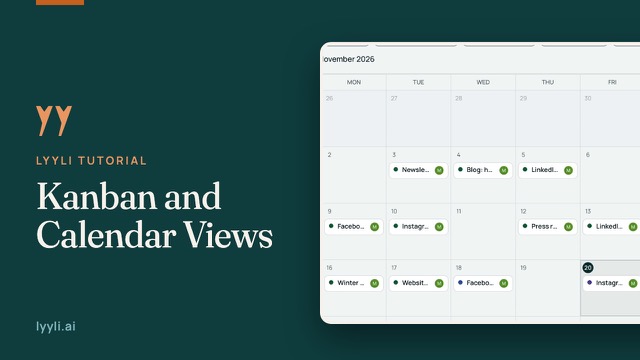
Walk through the Kanban board, the Calendar tab and Overview to check active work, deadlines and your pipeline at a glance.
Transcript
Hi, I'm Mikko. When you lead communications, you want to see the whole picture at once instead of guessing where things stand. Let's open Contents in the sidebar.
Here in Kanban view, Lyyli Ideas collects suggestions from Lyyli, while the other columns track what your team chooses to move toward Published. Looking at New clinic opens in Riverside, you see its project, channels, and deadline right on the card. When things get busy, let's narrow this down with filters. I'll pick the Clinic openings project, and the board focuses on just that work. To see how those deadlines line up on a schedule, let's switch to the Calendar tab.
This is the same content, arranged by date. You can switch between Month and Week or jump back with Today, and Unscheduled on the left holds anything still missing a deadline. When a new idea comes up, click New content.
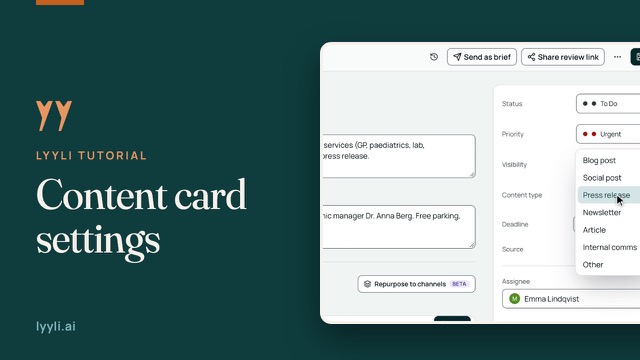
Here you add your notes, assign responsibility, and set the channels and deadline before hitting Create. Since we don't need a new card today, I'll hit Cancel and open Overview in the sidebar.
Overview gives you a clear summary at a glance, showing active work, anything running late, and what's moving through your Content pipeline. Once you see where things stand, you're ready for your next step. You can open any card to get to work, or plan your month with AI. Thanks for watching.
About this video
In this tutorial you see your team's communications work in one place instead of guessing where things stand. Open Contents in the sidebar to see Lyyli Ideas, follow work toward Published and filter the board by project.
Switch to Calendar to view deadlines by Month or Week and review Unscheduled items. You can also open New content to set notes, responsibility, channels and a deadline, or check Overview for active contents.