Video tutorials
Workspace settings explained
Walk through Workspace settings in Lyyli so your team does not need to repeat brand rules in every prompt.
Transcript
Hi, I'm Mikko, and I'll show you how Workspace settings save your team from repeating brand rules in every prompt. Let's open Workspace settings from the sidebar.
These five tabs control how the workspace behaves for your team. I'll start on General. Under General, set the Workspace language so the AI writes in the right language, and adjust your Default view or Default AI model as needed. General instructions guide everything written here. I'll click Save and move to Brand.
Brand sets the direction for your writing. Under Tone of voice & guidelines, use AI-assisted fill or Analyze your website, then lock in your Do's and Don'ts. Next, I'll scroll down to Visual identity.
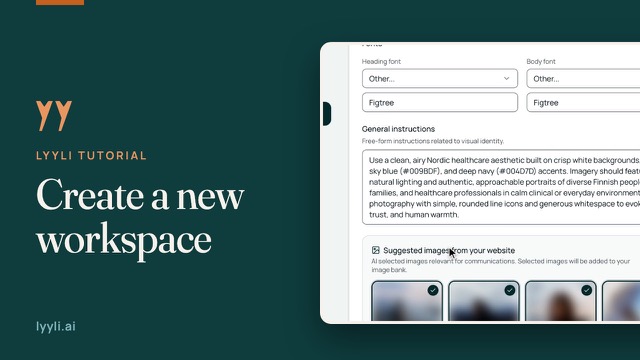
Visual identity keeps your colors, fonts, and visual General instructions together so generated images match your look. Moving on, I'll open Content.
Content gathers your everyday source material, from reference visuals in the Image Bank to ideas sent to your Email inbox or fetched daily via Web Ideas. From here, we'll head into Integrations.
Under Channels & Publishing, you connect external channels. Publishing belongs to the Professional plan and is currently in testing, and you always approve posts before anything goes out. On Slack, Connect Slack captures Slack ideas. Let's finish on Management.
Management holds Sharing settings and Manage sharing so you decide who accesses this space. These tabs steer everything the AI produces here, so let's look at your next step. Open Workspace settings in your own account and review the Brand tab first.
About this video
Open General to set Workspace language, Default view, Default AI model and General instructions. In Brand you configure Tone of voice & guidelines, Do's, Don'ts and Visual identity, which keeps your content consistent.
Content covers Image Bank, Email inbox and Web Ideas. Under Integrations you find Slack and Channels & Publishing, which belongs to the Professional plan and is currently in testing, and Management holds Sharing settings and Manage sharing.