Video tutorials
Create a new workspace in Lyyli
Launch the guided setup from the workspace switcher and bring your strategy, brand styling and idea sources into one workspace.
Transcript
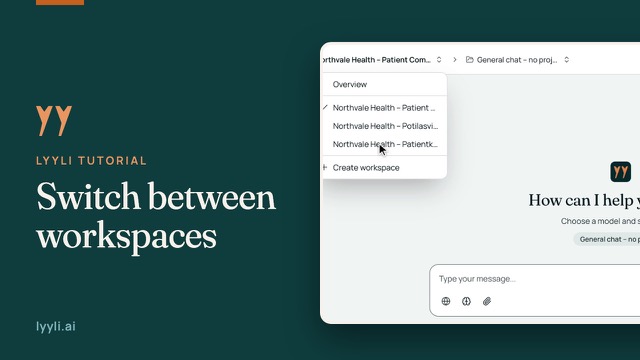
Hi, I'm Mikko. If this is your first day in Lyyli, creating a workspace brings your strategy, visual identity, and idea sources into one place. Let's open the workspace switcher in the top bar.
Here you'll see Overview and your existing workspaces. To set up a new space, I'll click Create workspace. You'll see five steps on the left, starting in Basic information. Instead of typing everything manually, Autofill setup from your website reads your site and prefills brand details. Let's enter your website address and click Analyze.
Next, add a Workspace name and pick the Workspace language, which sets the language AI uses for content here. Set Visibility to Private for yourself or Organization for your team, and click Next.
In Communication strategy, the fields are prefilled from the analysis. It saves typing, though AI won't catch every nuance, so review and refine these to match how you communicate. Next, let's check Visual identity.
Here in Visual identity, your brand styling is prefilled too, and you can adjust it anytime since these settings affect image generation here. Now let's check the last two steps.
In Idea sources, enabling Web ideas lets Lyyli check sources once a day. In Email inbox, enabling it creates an inbox address automatically. Nothing is created before this final step, so let's click Create workspace. Your workspace is ready, and you can change anything later in Workspace settings. For your next step, go ahead and create your first project or content card.
About this video
Getting started in Lyyli begins with a dedicated workspace for your brand and communications team. The setup guides you through five steps: Basic information, Communication strategy, Visual identity, Idea sources and Email inbox.
You can prefill details from your website with Autofill setup and review the content before you click Create workspace. Anything you enter can be updated later in Workspace settings.