Lyyli
Pricing
LoginBook a demo
Book a demo
Back to video tutorials

Video tutorials

How to switch workspaces and set default views in Lyyli

Switch between workspaces, follow them side by side in Overview and choose the default view and home page that suit your work.

Your browser cannot play this video. Download the MP4 file

Length 0:54

Chapters

Transcript

Hi, I'm Mikko. When we manage different areas, separate workspaces keep everything organized. Let's open the workspace switcher at the top. It shows the current workspace, and from here I can move around without touching any content. I'll pick another workspace.

Now the sidebar reflects only this space, with its own tone of voice and channels, while other workspaces stay untouched. Next, I'll open Overview. Here, Overview pulls our workspaces side by side so I can follow upcoming work across the team. To set my starting views, I'll open Workspace settings.

Under General, Default view decides what opens when I switch here. Under Settings, Home page sets where I land when I log in. Here's your next step. Open Settings to pick your Home page, or use Create workspace when your team's ready for a new space.

About this video

When a team manages communications for different audiences or languages, separate workspaces keep projects, planning sessions, chats, tone of voice and channels organized. Switching between them leaves all existing content untouched.

Open the workspace switcher at the top to jump into another workspace or select Create workspace. Overview shows Workspaces, Content pipeline and Upcoming deadlines side by side. In Workspace settings under General you pick the Default view, and under Settings you set your Home page.
Read the written guide

  • Workspaces and projects: menu navigationSwitch workspaces and projects quickly and create new ones when your plan allows.

More videos

All videos
  • 1:29

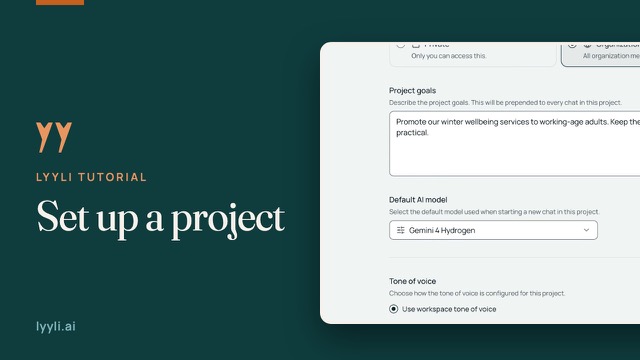
    How to set up a project in Lyyli

    Set up a project in Lyyli with its own goals, visibility, default AI model and tone of voice so your team shares the right context.

  • 1:22

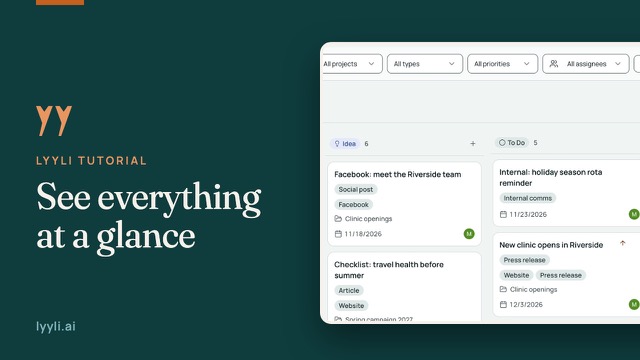
    One board for all your communications

    Walk through the Kanban board, the Calendar tab and Overview to check active work, deadlines and your pipeline at a glance.

  • 1:28

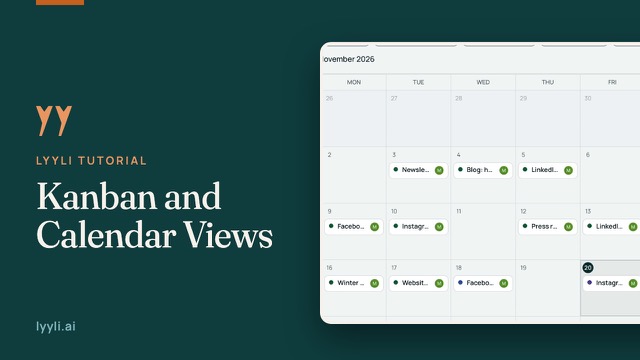
    Kanban and Calendar in depth

    Take a closer look at how Kanban and Calendar support daily communications work: filter the board, track workload and adjust schedules.

Lyyli.ai - Communications operations platform

Communications operations for organisations

Contact

hello@lyyli.ai
Petäiköntie 384, 77380 Kantala

Business ID: 3537519-5

Navigation

FeaturesTrustPricingCompare plansTeamHelpBlogCustomer storiesPrivacy PolicyLegalFAQInvoice addresses

More pages

Free communication analysisCommunication managementMeeting AgentInternal communications toolChange communicationCrisis communicationPublic sectorCommunications project managementApproval processFor communication directorsCommunication plan

Backed by

Expion - Lyyli.ai investorRedstone - Lyyli.ai investor (South Savo Growth Fund)

© 2026 Lyyli. All rights reserved.

Privacy Policy