Video tutorials
How to connect a LinkedIn company page in Lyyli
Connect a LinkedIn company page to your Lyyli workspace and see why connecting an account never publishes anything on its own.
Transcript
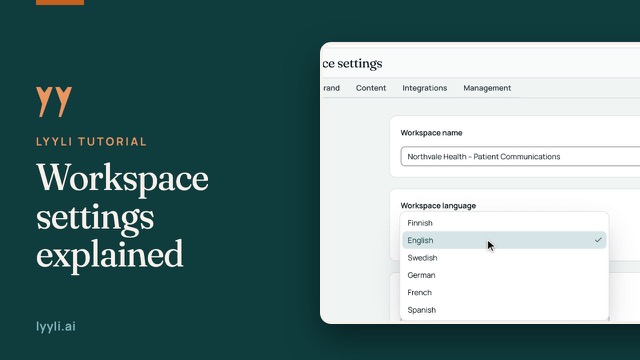
Hi, I'm Mikko, and in this video I'll show you how to connect a LinkedIn company page to your workspace. We're starting in Workspace settings on the General tab. Integrations are workspace specific, so different workspaces can have their own channels. Let's open the Integrations tab.
Under Channels & Publishing, you see the Publishing Channels & Blog list. Channel publishing is part of the Professional plan and is currently in testing. Each row lets you connect in your browser or via By phone (QR). I'll click Connect LinkedIn.
On the connection page, Where should we post from?, you can pick yourself, your LinkedIn pages, or both, because each one is its own account. I'll choose the company page labeled Post as organization and click Connect account.
Back in Lyyli, the LinkedIn row shows 1 connected, and the account is Active. Connecting an account never publishes anything on its own. When you're ready to post, open a content card, create a channel version, confirm I have reviewed the content, and publish or schedule it.
About this video
Channel publishing belongs to the Professional plan and is currently in testing. Integrations are workspace specific, so open Workspace settings, go to Integrations and under Channels & Publishing click Connect LinkedIn or use By phone (QR).
Select the company page labeled Post as organization and click Connect account. Once LinkedIn shows 1 connected and Active, you can open a content card, create a channel version, confirm I have reviewed the content and then publish or schedule.